
PPPA Computing
- External Login
- Submitting Batch Jobs
- Interactive Batch Jobs
- Disk Space and Backups
- Printing
- Beginner's Guide
- F.A.Q.
The HEP Cluster
The 'HEP' Linux cluster consists are a wide range of systems. Desktop, Servers and worker nodes. The servers and worker nodes provide a very wide range of services most noteably a good size high throughput cluster. The current status of the cluster may be found here.All the machines on which you can get a shell are running CentOS 7 Linux with a heavily extended range of software available. If you need a piece of software which is not there, let us know. Please note before installing any security considerations must be taken into account by the SYSAdmin team.
Our posix accessible storage capacity is around 500 TiB available from all user accessible systems on the cluster. Our batch cluster has over 1500 cpu threads with HEPSPEC in the region of 12/thread. We also have over 60 desktops for our local users.
External Login
The recommended method of connection is to use the University's provided VPN, information on setting up can be found here, then sshing straight to your assigned desktop machine. It is possible to use ssh log into one of our gateways, hepgw1.shef.ac.uk, hepgw2.shef.ac.uk, from outside the university network, except from ip addresses which are blocked due to the risk of ssh brute force attacks. If you think you may have been blocked see the FAQ further down this page.
The ssh gateway is not intended for users to do any significant work on and it not configured to allow this. See documentation here in the submission of interactive condor jobs.You should ssh to your allocated Desktop machine. If you don't have one, please ask by emailing hep-cluster-admins@sheffield.ac.uk.
It is also possible to use ssh to mount the gateway filesystems in linux or macos using the fuse system. This is not recommended on an unstable connection as it can lead to being blocked on the gateways due to repeated connection creation and drop. If using the university VPN this can be achieved going directly to your assigned desktop. Most modern linux distributions supply this. Mac OSX users should install OSXFUSE and MacFusion which will set up fuse, and a graphical interface thereto.
Within MacFusion it is necessary to set "Extra Options" to "-o allow_other" in order to make drag and drop file transfers work
Disk Space and Backups
Disk Space is mostly in the form of network shares. Your default home directory /home/your_user_name (use ~ as a short-cut) is shared from hepmaster across the rest of the cluster. This is where you should keep your normal day-to-day files. This has a quota system. Type 'df -h | grep home' so see how much of your quota you are currently using.
If you need more, there are a couple of options. /data/your_user_name is a network file-system (visible from the whole cluster). This is much larger and does not have automatic quotas. In addition /scratch/your_user_name is the local disk space on each machine. The latter should be considered volotile storage and in the event of disk failures data loss will occur.
The /home filesystem is fully backed up, and not much else. All other filesystems should be considered volatile, although we do our best to recover files from failing disks when requested.
Please, please, please do not keep the only copy of files you would miss if lost on the /data or /atlas or /scratch file-systems. These things do fail from time to time and are too large to back up.
Submitting Batch Jobs
The batch system is based on the htcondor system. The documentation is fairly impressive, but there are many, many options so here are the basics.
The available submit command is condor_submit. This is the proper condor submission command for which condor_qsub is in fact a wrapper (although now obsolete left in here for those who remember these tools better). Look to the htcondor documentation for instructions and examples.
Users are allowed 150 maximum concurrent jobs and 5000 queued at any time. Anything beyond this will be disallowed by the system.<\p>
The jobs by default are allocated a maximum of 24 hours of run time and 1024MB of RAM. Jobs exceeding their run time by more than 10% are automatically killed. Go over your memory limit and we may have to kill them to prevent harm to the system. To request more memory, set the request_memory parameter in your condor_submit job file. To request more run time, set the maxjobretirementtime in your condor_submit job file.
Migrating from condor_qsub to condor_submit
It is well worthwhile learning to use condor_submit as it has a very wide range of useful features. Notably, a single command can submit many jobs where before one command was required per job. For more detailed information please see the internal Dokuwiki, you will need to have VPN enabled or be on campus network to access this.
To get started: Suppose you have a bash script which you have been using with condor_qsub. Let's call it 'myjob.sh'. With condor_qsub you're running 'condor_qsub -lmem=2000Mm /home/username/myjob.sh' and your see output in myjob.sh.oclusterid and errors in myjob.sh.eclusterid. To use condor_submit, compose a file myjob.job containing the following:
Executable=/home/username/myjob.sh
Arguments=
input=/dev/null
output=myjob.sh.o$(Cluster)-$(Process)
error=myjob.sh.e$(Cluster)-$(Process)
log=myjob.sh.l$(Cluster)-$(Process)
request_memory=3000MB
maxjobretirementtime=36*(3600)
queue 1
Here we've requested 36 hours of run time rather than the default 24 hours. The 'log' output is very useful in tracking the progress on the job. If you change the command 'queue 1' to say 'queue 10' you'll automatically get different output and error files for each of 10 jobs. With a little practise, it becomes natural to take full advantage of the additional functionality of condor_submit and you'll wondor how you lived with qsub. Have a look at 'man condor_submit' for more details.
Checking and deleting jobs
Job status is available through the web interface. From the command line, jobs may be queried with 'condor_q' and deleted with 'condor_rm'.Interactive Batch Jobs
An interactive batch job may be started with 'condor_submit -interactive'. It is most useful if you do not have your own hep cluster machine and/or are logging in from outside the hep cluster. You may also choose to use it because the worker nodes are, on the whole, more powerful than the desktop machines.
A worker node is assigned just as with a normal batch cluster job, but rather than a pre-determined set of commands being executed, your terminal is attached directly to the worker node. You can then use this terminal as normal and take advantage of the worker node's cpu and memory.
Printing
For all printing please refer to the University Printing Services.
Printing from the cluster to the daft polar bear hugging overly complicated university managed printing system (Your only option)
Print to the queue "mfp". Create a file in your home area called .cupsrc and enter into that file "User Your university username". I've been working on a patch to get the scientific linux 6 version of cups to read this file and change the username of your job accordingly. It's very much a work in progress, but you should find that you get at least some functionality out of the university managed system.
A Beginner's Guide to Linux and the 'HEP' Cluster
The first thing to understand is that Linux is a command line based operating system. Whilst many common operations can be achieved by clicking icons on the desktop, this is not where the power resides.
Since the graphical desktop is rather straightforward to use, I will confine myself to important command line operations.
Getting Started
On the interactive 'HEP' cluster, you will find yourself staring at a graphical login prompt. Just type in the username and password you have been issued to make a start.
Whilst the desktop manager will always be running in normal operation, the real power of Linux is the command line. The first thing to do it start a terminal. There will be a button in the menu (bottom left button) and various other shortcuts to launching a terminal, but the easiest way is to right-click on the desktop and find the item on the pop-up menu which launches the terminal.
In addition to the terminal button, you will find many other application buttons for applications, utilities, system administration (don't touch) and so on. It's best not to depend on these because they all have their limits. In particular, I don't want you to get too fond of any file system managers you might find, since file management is, like everything else, much better done from the command line.
Basic Commands
Most of the programs under Linux are simple command line. To find out how to use a command, bring up the man page. e.g. man cp will tell you how to use the cp command to copy files within the filesystem
pwd: This command tells you where you are (what directory) in the filesystem. When you first log in, you'll find yourself in your home area. This is where you should keep day to day files.
cd: This is the command to change directory. To change into a subdirectory of your current location: cd mydir. To ascend one level in the directory structure: cd ... You may also specify a full path: cd /home/bob/tmp/test. You'll get used to it.
ls: List the contents of the current directory. Most useful. This command has several useful options. ls -l will show details of each item in the directory. ls -A shows files and directories starting with . which are normally hidden. ls -rt shows files is reverse order of modification time (newest at the bottom). This is one command it's worth playing with and getting to know.
cp: This command copies files. You can specify one or more files or directories to be copied, the final argument is the destination. If you specify a directory which already exists as the destination, all files will be copied into that directory, using the same names as the original files. Note that if you specify more than one file or directory to copy, the destination must be an existing directory. Note that . indicates the current directory, and .. indicates one directory up. Filesystem commands tend to respond to the -r (recursive) flag which causes the command to descend into directories. This is often appropriate.
mv: Functions in much the same way as cp except that the original files are not preserved. This is also the normal way to rename files. If the new location for the files is on the same filesystem, the command is very quick, because the files are simply renamed and not copied then deleted.
rm: Remove file. Very dangerous command as files cannot be restored once removed. With the -r flag, especially dangerous. For example, rm -r * can promptly remove every file you own.
mkdir: create a directory with the specified name
tar: Possibly the most useful program ever devised. Rather similar to (and predating) windows zip programs. It creates one large file containing several smaller files and/or directories. It is common for software to be distributed in the form of tar files. A tar may be compressed with the standard Linux compression tool gzip. Such compressed tars are often named file.tar.gz or file.tgz. To create a gzipped tar file use tar cvzf archive.tar.gz files. To extract, use tar xvzf archive.tar.gz. There are many options for tar which are listed in the man pages.
There are many other commands, hundreds in fact. If you come across a task and you don't know which is the proper program to use, please ask. There are programs for everything, including difficult jobs like drawing Feynmann diagrams. For more information on what softwares are available and how to access them please visit HEP Dokuwiki (Please Note you must be within the University Firewall to access this page, i.e. eduroam, VPN, in Uni,...)Web and Mail
You're not going to get far without a web browser, so let's start there. Type firefox on your terminal. This will bring up the standard web-browser, Firefox. If you fancy something different, there is also Google Chrome which we have managed to persuade to run on SL6.
The university will have created an e-mail account for you which is available via webmail and imap. The webmail (either via the Portal or Google) is convenient because it requires no set-up, but it is also slow and can be unreliable.
More popular long-term is thunderbird in imap mode. This allows you to access the mail directly on the server from an number of computers, just as with webmail, but the work is done by your computer. Instructions are available on the cics web-pages. For laptops or home machines, you'll want to follow the instructions for "Sending Mail Securely" and "Receiving Mail Securely" or it won't work.
Remote Login
Once you have an account on the system, you have access to the entire cluster. It is possible to log in from one machine to another by using ssh and specifying the hostname. e.g. ssh hep8 will (after prompting for a password) log your terminal into hep8. If you then run an application (you could try firefox again), it will run on hep8 but its window (if it has one) will be directed back to the machine at which you sit. This is called X-window forwarding and can be extremely useful
To log in to another machine or to log into hepgw from outside a similar command is used. In this case, you should specify the fully qualified domain name (fqdn) and, if it differs from their username where you are, your username. e.g. ssh bob@hepgw.shef.ac.uk. Use this command to access your files when you're not at the university.
If you need to transfer files, use scp
Frequently Asked Questions
Firefox won't start / bookmarks gone
If firefox dies or a crash occurs while it is in use, it gets very upset. You may see this window when you try to start it.
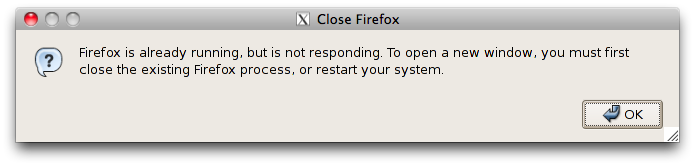
If you have firefox running on another cluster machine, then you should quit it. Most likely, this is not the case and firefox has simply become confused.
In a terminal, cd to '~/.mozilla/firefox/*.*', this is your profile directory and contains all the firefox settings etc. Using rm, delete the files 'lock' and '.parentlock'. This is enough to get firefox running, but not enough to properly fix it. You might try starting firefox at this point, but most likely you will find that your bookmarks are gone, your 'Back' button doesn't work and the thing is generally crippled. Quit firefox and in the same directory as before remove the files 'places.sqlite' and 'places.sqlite-journal' (the latter is usually there, but not always). Firefox should then go back to working properly.
Why can't I ssh into hepgw
If you're seeing something like this when you try to log in:$ ssh username@hepgw.shef.ac.uk
ssh_exchange_identification: Connection closed by remote host
Your ip address has most likely been blocked on hepgw.
If you're a legitimate user, either you're getting your password wrong (or sharing an ip address with somebody who does); or you just need to type a little more carefully. You should be able to check if you are blocked yourself using the web interface at www.hep.shef.ac.uk/sshblock. You will have to email hep-cluster-admins@sheffield.ac.uk who should be able to unblock you from the command line.